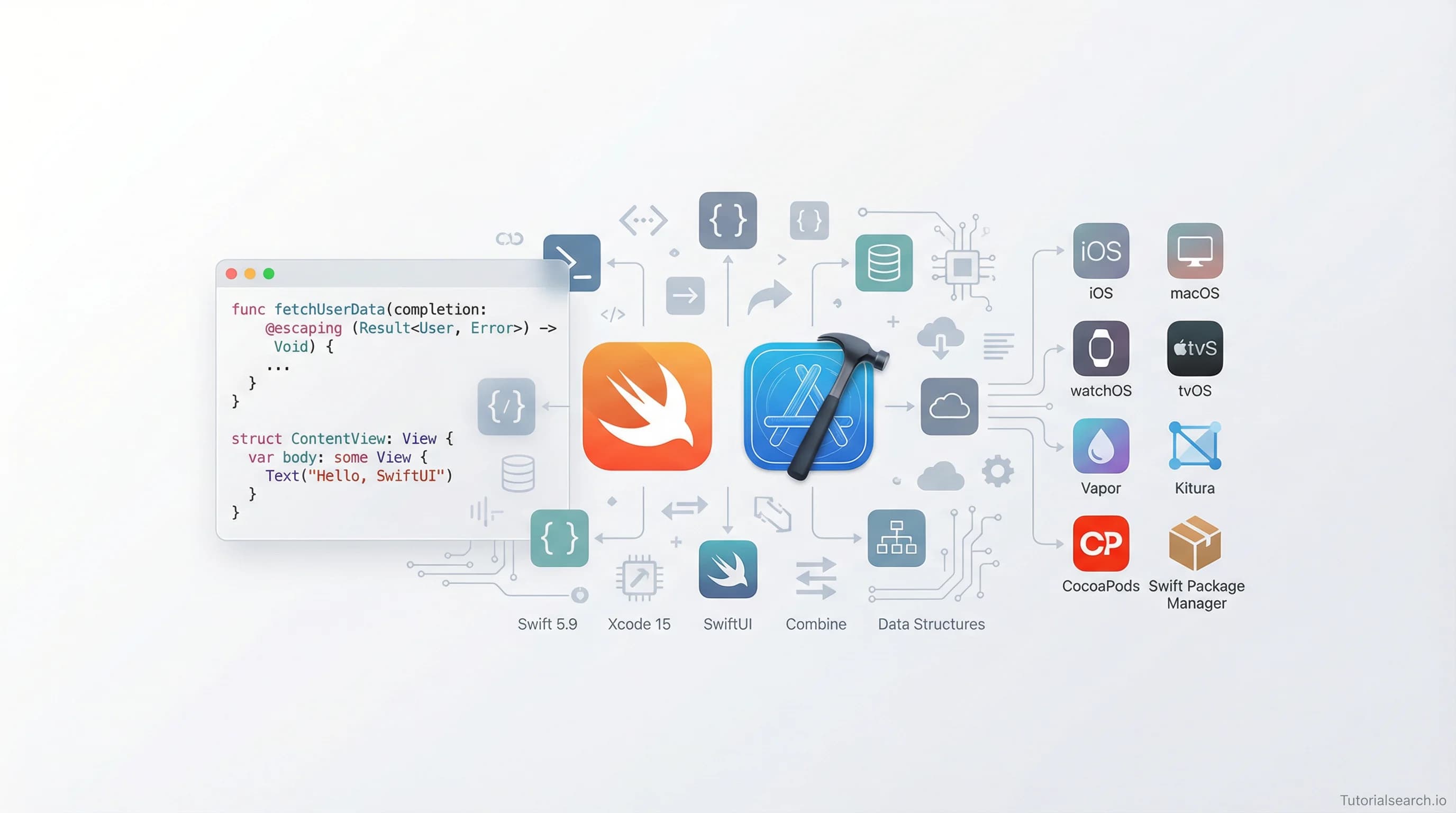
Swift, Xcode, and the Tools That Actually Work for macOS Development
Most macOS developers come from iOS and expect the desktop to work like a phone. It doesn't. This guide covers the real tools, frameworks, and resources professionals actually use for macOS development.
Need a web app built? Hire the team behind TutorialSearch.io
We ship fast, production-grade full-stack apps (Next.js, React, edge infra) — the same stack that powers this site.
Swift, Xcode, and the Tools That Actually Work for macOS Development
Most developers who start macOS development come from iOS. This creates a problem: they expect the desktop to work like a phone, and it doesn't. The UI paradigms are different. The performance constraints are different. Even the app architecture feels wrong when you copy-paste from iOS. I learned this the hard way after spending three weeks fighting a window management system that works completely differently than UIViewController.
The truth is macOS development requires you to think differently. You're not building for a constrained device where users tap buttons for two seconds. You're building for power users sitting at a desk with a keyboard, mouse, and high-resolution display. They expect menus. They expect responder chains. They expect your app to not hog CPU while running in the background. If you skip learning these fundamentals and just use SwiftUI, you'll ship something that feels wrong to Mac users—even if it technically works.
This guide covers the real tools, frameworks, and resources that experienced macOS developers actually use. Not the aspirational "Swift is perfect" narrative. The practical stuff: when to use SwiftUI versus AppKit, why Objective-C still matters, and how professionals structure macOS projects so they stay maintainable. I'll cover everything from getting Xcode from the Mac App Store to finding the best GitHub repositories for learning real Swift code.
Key Takeaways
- Swift is the modern standard for macOS development, but Objective-C knowledge is valuable for maintaining legacy codebases and understanding Apple frameworks at deeper levels
- SwiftUI excels for simple layouts but AppKit remains superior for complex, desktop-class applications requiring fine-grained control over window behavior and menu systems
- Xcode is non-negotiable — it's the only integrated development environment for macOS, and mastering its debugging tools separates amateur projects from production-grade apps
- Core Data and SwiftData handle persistence — choose SwiftData for new projects, but understand Core Data because you'll encounter it in production code
- The macOS-specific frameworks (Cocoa, AppKit, Foundation) matter more than in iOS development because users expect native behavior and performance
- Learning resources are fragmented — official Apple tutorials are excellent but incomplete; community projects on GitHub fill important gaps
Table of Contents
- The Language Decision: Swift vs Objective-C
- SwiftUI vs AppKit: Choosing Your UI Framework
- The Essential Development Tool: Xcode Deep Dive
- Data Persistence: Core Data vs SwiftData
- The Frameworks You Actually Need
- Best Courses for macOS Development
- Free Resources and Documentation
- YouTube Channels Worth Following
- GitHub Projects to Learn From
- Community and Support
- Frequently Asked Questions
The Language Decision: Swift vs Objective-C
Swift is your default choice. Apple released Swift in 2014, and it's now the standard language for all Apple platform development. It offers modern syntax, type safety, and eliminates entire categories of memory management bugs that plagued Objective-C.
But here's the honest part: Objective-C still runs significant portions of Apple's frameworks. When you use SwiftUI on macOS, you're often calling Objective-C code underneath. The Cocoa and AppKit frameworks are fundamentally Objective-C designs, even if they're accessible through Swift bridges. For learning legacy code, resources like TutorialsPoint's Objective-C Tutorial and "Learn Objective-C on the Mac" are still valuable.
For macOS development specifically, you should learn Swift as your primary language. If you're joining a company with a macOS codebase, check whether it's Objective-C first—Swift adoption in the macOS world is slower than iOS because the platforms have longer app lifespans.
Swift advantages for macOS:
- Memory safety prevents entire categories of crashes
- Cleaner syntax than Objective-C's bracket notation
- Growing ecosystem of libraries and frameworks
- Better tooling and IDE support in Xcode
- Type inference reduces boilerplate
Objective-C advantages (legacy work):
- Extensive existing macOS codebase in production
- Dynamic method dispatch enables powerful patterns
- Deeper integration with Cocoa runtime
- Older frameworks sometimes require Objective-C knowledge for full access
The professional move: master Swift, understand Objective-C syntax enough to read existing code, and know when each matters. The Objective-C Crash Course for Swift Developers teaches this transition efficiently.
SwiftUI vs AppKit: Choosing Your UI Framework
This is the decision that trips up most newcomers. SwiftUI is Apple's modern, declarative UI framework. AppKit (also called Cocoa) is the 1990s-era imperative framework that powers most existing macOS apps.
SwiftUI is better if:
- You're building a new macOS app from scratch
- The UI fits SwiftUI's opinionated layouts (forms, lists, simple navigation)
- You want code that compiles to iOS, watchOS, and tvOS too
- You need to ship quickly and complexity is low-to-medium
- Your team is comfortable with reactive programming
AppKit is better if:
- You need precise control over window behavior or window management
- Your app has complex custom UI elements or graphics
- You require advanced text editing (like an IDE or word processor)
- You're modifying existing AppKit code
- You need maximum performance for specialized tasks (like audio editing)
The reality: most professional macOS apps use AppKit because desktop applications are complex. SwiftUI is improving fast, but it's still missing features that professional users expect (advanced menu systems, sophisticated drag-and-drop, file browser integration).
"Hacking with macOS" teaches both frameworks side-by-side, which is valuable for understanding the tradeoffs. Most developers building real apps maintain knowledge of both. Programming macOS Using SwiftUI focuses specifically on the modern approach for those starting fresh.
The Essential Development Tool: Xcode Deep Dive
Xcode is the only integrated development environment for macOS development. This is both good and bad. Good because it's incredibly powerful and tightly integrated with macOS frameworks. Bad because you don't have alternatives when Xcode frustrates you.
Key features for macOS development:
Interface Builder: The visual layout tool has improved dramatically. For AppKit development, Interface Builder is still essential. For SwiftUI, you'll mostly write code directly, though preview canvas helps.
Debugger and profiling tools: Xcode includes LLDB (the debugger) and Instruments for performance analysis. Instruments is particularly powerful for identifying memory leaks, CPU hotspots, and UI rendering issues. These tools separate professional development from amateur hour.
Simulator and testing: Unlike iOS, macOS development doesn't require separate hardware, but Xcode includes simulators for older macOS versions. Testing infrastructure includes XCTest for unit and UI testing.
Code editors and completion: Xcode's code completion now uses AI-powered suggestions. For Swift, it's remarkably intelligent. Just be aware it sometimes suggests suboptimal solutions—experienced developers still handwrite code.
The learning curve is steep. Xcode has menus within menus and capabilities most developers never discover. The key is learning the fundamentals through courses like Comprehensive macOS Development and then exploring specific features as needed.
Data Persistence: Core Data vs SwiftData
macOS apps need to store data. For anything beyond a few simple preferences, you'll use a database.
SwiftData is Apple's modern approach, introduced in iOS 17 and macOS Sonoma. It's built on top of Core Data but with a much cleaner Swift API. If you're starting a new macOS project today, SwiftData is your choice.
Core Data is the older framework that still powers most existing macOS applications. It's complex—the learning curve is steep, and mistakes cause hard-to-debug issues. But it's mature, battle-tested, and you'll encounter it in every professional codebase.
The professional approach: learn SwiftData for new projects, but understand Core Data well enough to maintain existing code. Many companies are still slowly migrating from Core Data to SwiftData.
For simple data storage, NSUserDefaults (or the Swift UserDefaults wrapper) is sufficient. Don't overcomplicate persistence for basic preferences.
The Frameworks You Actually Need
macOS development requires understanding several foundational frameworks. Start with Apple's official documentation on creating a macOS app:
Foundation: The base framework providing essential types (String, Array, Dictionary, Date). This is the same on iOS, but macOS development uses more Foundation APIs directly.
Cocoa/AppKit: The desktop UI framework. If you're using AppKit, you need Cocoa. It's large and covers everything from menus to window management to accessibility.
CoreData: For data persistence (complex queries, relationships, caching).
CloudKit: For cloud synchronization across user devices.
Combine: Apple's reactive programming framework. You'll use this for data binding and asynchronous operations.
Concurrency (async/await): Modern Swift concurrency primitives. These are essential for preventing UI freezes and managing background tasks.
SwiftUI: The modern declarative UI framework.
If you're building a serious macOS app, you'll need to understand how these frameworks interact. SwiftUI simplifies some of this, but knowing the underlying frameworks prevents making rookie mistakes. The Comprehensive Guide to Swift covers these fundamentals thoroughly.
Best Courses for macOS Development
Need a web app built? Hire the team behind TutorialSearch.io
We ship fast, production-grade full-stack apps (Next.js, React, edge infra) — the same stack that powers this site.
The selected courses below teach practical macOS development with real projects.
Editors' Choice Courses
Programming macOS Using SwiftUI - Project Based Learning by Mohammad Azam (Udemy, $) - Rated 4.5/5 (2,536 students). This course focuses on real SwiftUI projects for macOS. Azam teaches through building complete applications rather than isolated concepts. Excellent for understanding how SwiftUI actually works on the desktop.
Comprehensive macOS Development by Devslopes (Udemy, $) - Rated 4.1/5 (1,518 students). Structured approach covering both SwiftUI and traditional macOS development patterns. Good foundation for beginners and intermediate developers.
The Comprehensive Guide to Swift by Ibram Uppal (Udemy, $) - Rated 4.2/5 (9,166 students). While not macOS-specific, this course thoroughly covers Swift itself, which is essential. Many macOS-specific issues actually come from weak Swift fundamentals.
Additional Recommended Courses
The Complete MacOS Developer Course - Apps for the Desktop by Nick Walter (Udemy, $) - Covers both modern SwiftUI and traditional AppKit approaches. Walter teaches professional development patterns that scale to real applications.
SwiftUI 2.0 Apps on iPhone, iPad, Mac, Watch & TV by Nick Walter (Udemy, $) - Rated 4.4/5. Teaches cross-platform development with SwiftUI, showing how to adapt iOS knowledge to macOS.
Master iOS Swift App Development In 2025: UIKit & SwiftUI by Gwinyai Nyatsoka (Udemy, $) - Rated 4.6/5. While iOS-focused, SwiftUI knowledge transfers to macOS, and this course is comprehensive.
Objective-C Crash Course for Swift Developers by Mark Price (Udemy, $) - Rated 4.2/5 (8,351 students). If you need to work with Objective-C code, this gets you productive quickly.
macOS 10 Development Fundamentals by Corissa Jesseman (Pluralsight, $) - Beginner-friendly introduction to macOS development fundamentals.
Free Resources and Documentation
Apple Developer Documentation - Start here. Apple provides free tutorials, including "Creating a macOS App" in their official Swift tutorials. These are genuinely excellent, though sometimes incomplete for real-world scenarios.
Hacking with Swift - Paul Hudson's free resource includes over 400 pages of SwiftUI examples and explanations. His approach emphasizes learning by doing. The paid "Hacking with macOS" book ($60) teaches real project-based development.
Swift.org Getting Started Guide - The official Swift website with language documentation, getting started guides, and community resources.
TutorialsPoint Objective-C Tutorial - Free reference for Objective-C syntax and basics if you need to understand legacy code.
Wikibooks: Programming Mac OS X with Cocoa for Beginners - Community-maintained guide to macOS and Cocoa fundamentals.
GitHub Repositories Worth Studying
stakes/swiftui-macos-resources - A curated collection of SwiftUI examples specifically for macOS. Includes links to open-source apps, tutorials, and resources. Excellent for finding real examples of SwiftUI on Mac.
donarb/swiftui-macos - Another focused collection of macOS SwiftUI resources with source code examples.
jordansinger/todo-macos-swiftui-sample - A complete Todo app in SwiftUI for macOS. Clean, readable code suitable for learning real project structure.
jordansinger/health-macos-swiftui-example - A Health app recreation in SwiftUI. Shows how to implement more complex layouts and data handling on macOS.
Juanpe/About-SwiftUI - A repository gathering all major SwiftUI resources, articles, and documentation in one place.
onmyway133/awesome-swiftui - A comprehensive awesome list of SwiftUI resources across all platforms, including macOS-specific items.
These repositories are valuable because they show how experienced developers structure macOS projects. Reading source code is underrated as a learning method—you'll learn more from studying a real codebase than from many tutorials.
YouTube Channels for macOS Development
Brian Advent - Produces iOS and macOS development tutorials. His explanations are clear and he focuses on practical techniques you can apply immediately.
Sean Allen - Posts 3 videos weekly on Swift and iOS development from an iOS engineer perspective. While iOS-focused, much content applies to macOS.
Hacking with Swift - Paul Hudson's YouTube channel complements his written tutorials. Project walkthroughs show how to build complete applications.
Code with Chris - Covers Swift fundamentals and has growing macOS-specific content. Good for building Swift skills before diving into macOS frameworks.
Kavsoft - Focuses on SwiftUI and makes the framework accessible. Content is relevant whether you're building for iOS or macOS.
Community and Support
Apple Developer Forums - Official support channel. Responses can be slow, but you're getting answers directly from Apple engineers.
Stack Overflow Swift Tag - Search before asking. Most common macOS development questions already have answers.
Hacker News (macOS/Swift threads) - Good for discussing broader ecosystem topics, though less structured than forums.
Swift Forums - Official forums for Swift language and ecosystem discussion.
Reddit r/swift - Community is helpful, though you'll encounter noise alongside signal.
The professional approach to getting help: phrase questions clearly, share minimal reproducible examples, and search existing answers first. "How do I learn macOS development?" gets ignored. "I'm updating an NSDocument-based app from Objective-C to Swift and hitting errors with custom window controllers. Here's the code..." gets answered.
Frequently Asked Questions
Q: Should I learn Objective-C or start with Swift?
A: Start with Swift. Objective-C knowledge becomes valuable once you're comfortable with macOS development fundamentals and encounter Objective-C codebases. Learning Objective-C first is unnecessary for new developers.
Q: Is macOS Development good for a career?
A: Absolutely. macOS developers are in high demand, especially those who understand both modern SwiftUI and legacy AppKit patterns. Enterprise Mac software is a substantial market. Salaries for experienced macOS developers rival iOS developer compensation.
Q: How does macOS Development differ from iOS Development?
A: macOS targets keyboards and mice instead of touchscreens. Apps run in resizable windows instead of full-screen. Users expect file system integration, advanced menus, and background operation. Performance expectations are higher because macOS isn't resource-constrained. The mental model is fundamentally different—desktop apps are more complex than phone apps.
Q: What frameworks are most important to master?
A: SwiftUI for modern UI development, AppKit if you're maintaining existing apps, Core Data or SwiftData for persistence, and the Combine framework for reactive programming. Foundation underpins everything.
Q: How much Swift do I need to know before learning macOS-specific frameworks?
A: You should understand variables, functions, classes, structs, enums, protocols, and error handling before diving into macOS frameworks. Optionals and generics matter too. The good news: most macOS development courses teach necessary Swift alongside framework knowledge.
Q: Can I test macOS apps without owning a Mac?
A: For development, you need a Mac. The Xcode simulator works, but doesn't catch all macOS-specific issues. Virtual machines are an option but slower for development. Testing on real hardware is essential before release.
Q: Where do I find the best macOS development examples?
A: GitHub repositories are your best bet—search for "swiftui-macos" or browse stakes/swiftui-macos-resources. Apple's official sample code is good but sometimes simplified compared to production apps.
The Next Step
macOS development rewards deep learning. The ecosystem is smaller than iOS, so building expertise is achievable without overwhelming volume of resources. Start with Swift fundamentals, choose whether you're targeting SwiftUI or AppKit based on your app's complexity, and then spend time in Xcode building actual projects.
The professionals in this space aren't necessarily coding for ten years. They understand the constraints of desktop applications, they know which tools solve specific problems, and they avoid common mistakes. That's achievable. Start by building a simple utility app using SwiftUI. Build something slightly more complex using AppKit. Read other people's code on GitHub. Ask specific questions when you're stuck.
macOS development is learnable, rewarding, and increasingly valuable as more companies build quality desktop software. The frameworks will frustrate you sometimes. The documentation will feel incomplete. But that's true of every platform. Stick with it, and you'll ship software that professional Mac users actually respect.
Related Topics to Explore
- Browse Modern Languages — Explore Swift in context with other contemporary programming languages
- Browse Programming Fundamentals — Strengthen your foundation before diving into macOS-specific frameworks
- Browse JavaScript Development — Consider web-based tools for macOS app development
- Browse Object Programming — Master OOP concepts essential for AppKit and Cocoa
- Browse Automation Development — Build macOS automation tools with Swift scripts