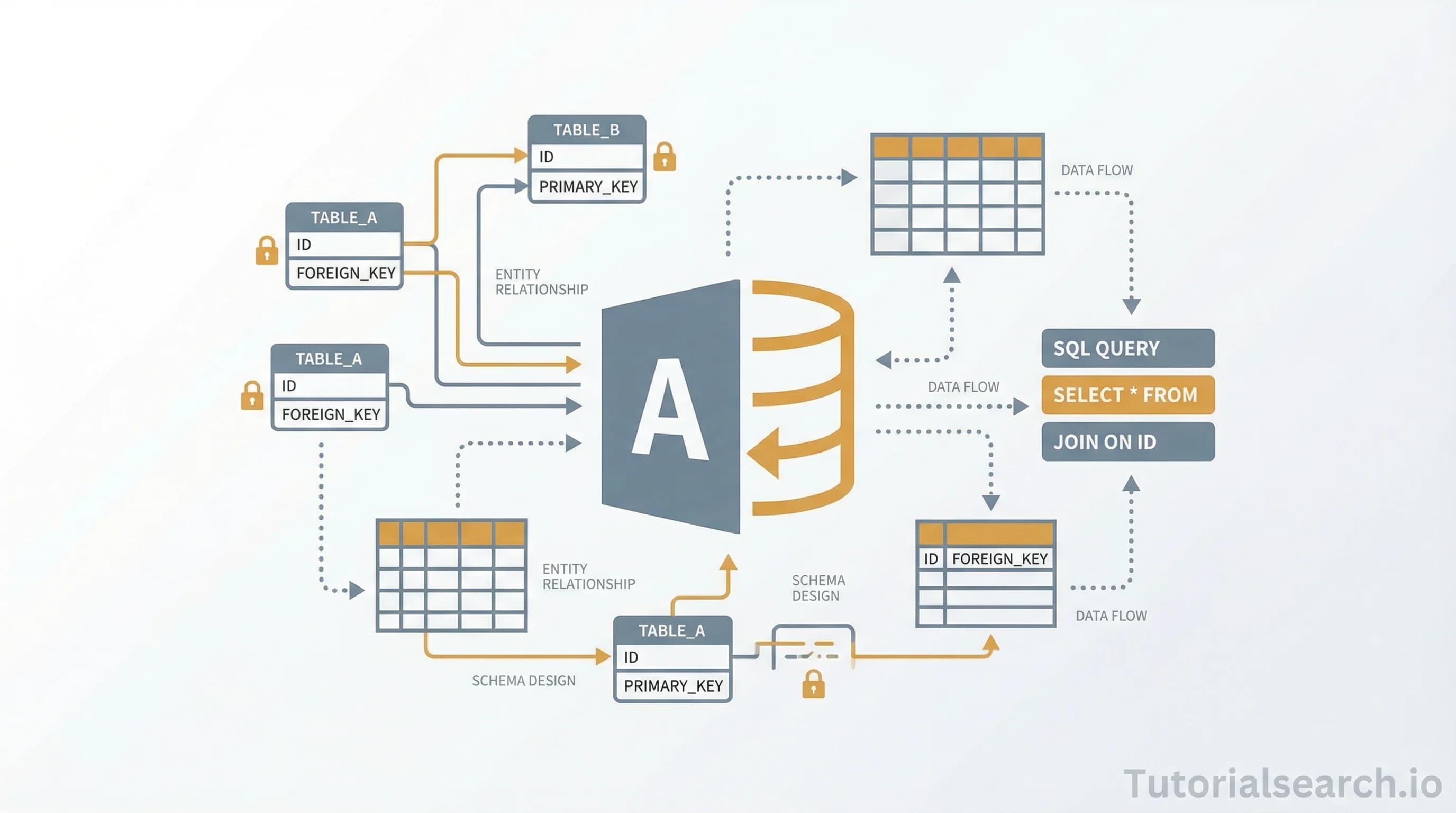
Microsoft Access Tables: The Design Guide I Wish I Had
Microsoft Access Tables are the backbone of every database you build. Learn practical table design principles—from primary keys and data types to relationships and normalization—to build reliable databases that scale.
Hire the developers behind TutorialSearch.io
We built this site — full-stack web apps, AI integration & automation. Tell us what you need and we'll build yours.
Microsoft Access Tables are the foundation of any database you will build. Without them, you have nothing. They are where your data lives, how you organize it, and ultimately how you retrieve it when you need answers.
Key Takeaways
- Every table needs a primary key to uniquely identify records and prevent duplicates
- Choose the right data type from the start—changing it later causes cascading problems
- Normalize your structure to eliminate redundancy and protect data integrity
- Plan your relationships before you build, not after your database is a mess
- Field naming matters—use consistent conventions to make queries and relationships obvious
Table of Contents
- Why Table Design Matters
- The Five Critical Elements
- Primary Keys Explained
- Mastering Data Types
- Building Relationships That Work
- Normalization Without the Theory
- Top Courses to Master Access Tables
- Free Learning Resources
- YouTube Channels That Teach It Right
- Community Resources
- FAQ
- Browse Related Topics
Why Table Design Matters
I spent three years working with a mess of an Access database where someone had crammed everything into one table. Customer names, order details, product descriptions—all in one place. Querying it was slow. Adding new data was painful. Finding specific information felt impossible.
That experience taught me something valuable: proper table design in Access is not optional, it is liberation.
When you structure your Access Tables correctly, everything else becomes easier. Forms work better. Queries run faster. You can add new data without corruption. Your future self—the one maintaining this database in two years—will thank you.
The tragedy is that many people skip this step. They think "I will just throw data in a table" and worry about structure later. But later never comes. Instead, you are stuck maintaining broken relationships, fixing typos, and wondering why performance is terrible.
This is not just frustration. Bad table design has real consequences. Duplicate data means inconsistent information. Poor primary keys prevent relationships from working. Wrong data types cause sorting errors and calculation failures. Every mistake compounds as your database grows.
The good news: table design is not complicated. It is a skillset you can learn in a few hours and apply forever. The principles do not change between Microsoft Access versions or between database platforms. Understanding them here makes SQL Server easier, makes MySQL intuitive, makes cloud databases approachable.
The Five Critical Elements
Every strong Access table has five components working in harmony.
First: A clear purpose. Each table should answer one question. Customers table stores customer data. Orders table stores orders. Products table stores products. Not everything related to sales. One purpose, one table.
When tables have scattered purposes, relationships break down. Your Customers table should not contain sales history. Your Orders table should not contain product inventory levels. Separation of concerns matters in databases just like it does in code.
Second: A primary key. This is non-negotiable. A field (or combination of fields) that uniquely identifies each record. Access uses this to prevent duplicates and link tables together.
Without a primary key, you can have two identical customer records. You cannot tell them apart. When you try creating a relationship from Orders to Customers, which customer does the order belong to? Access refuses to work without clear identification.
Third: Well-chosen data types. Text or number? Short or long? Currency or decimal? Each choice impacts storage, sorting, and query speed.
A field typed as Text that contains "1, 2, 10" sorts as text: "1, 10, 2". A field typed as Number sorts correctly: "1, 2, 10". This matters when you are generating reports or filtering data.
Fourth: Logical field names. Use CustomerID not CustID. Use OrderDate not Date. Use ProductDescription not Desc. Future developers will understand your table at a glance.
Bad naming practices create confusion. "Date" appears in multiple tables—which table does it belong to? "CustomerID" clarifies that it is an ID for a customer. Names that are descriptive pay dividends.
Fifth: Planned relationships. How does this table connect to others? Document it. Build it intentionally. Do not discover relationships through trial and error.
Relationships are the glue holding your database together. They enforce data consistency. They enable powerful queries. But they only work when you plan them upfront.
Primary Keys Explained
Here is what confused me when I started: Access does not require a primary key, but you should always create one anyway.
A primary key is a field that uniquely identifies each row. Think of it like a passport number—every person gets exactly one, it never changes, and no two people share the same number.
The best approach in most Access databases is to use an AutoNumber field. Access generates a unique number automatically when you create a record. It never repeats. It never changes. It has no business meaning—it exists solely to tag that record permanently.
Some people use real-world identifiers as primary keys. Social security numbers for people. Passport numbers for travelers. Invoice numbers for orders. Do not do this. Here is why:
Real-world identifiers can change. A company might reassign invoice numbers. A government might retire a passport number format. When your primary key changes, you break every relationship pointing to it. You are forced to update that field across multiple tables—a nightmare if you have thousands of records.
People also make mistakes entering real-world identifiers. Someone types "000" instead of "100" and suddenly you have a duplicate. Your database silently accepts broken data. Now you have two "100" entries and cannot tell them apart.
AutoNumber eliminates both problems. It is guaranteed unique, it never changes, and humans cannot mess it up. Access manages it automatically.
Pro tip: Once you set a primary key, do not remove it. If you try to delete the primary key field later, Access will complain. Relationships depend on it. Other tables reference it. That primary key is now structural support for your entire database.
Mastering Data Types
Data types are where database design gets practical.
Access offers several data types, and choosing the right one matters more than beginners realize. A field typed as "Text" sorts differently than a field typed as "Number." A "Short Text" field maxes out at 255 characters while "Long Text" can hold a gigabyte.
The common data types you will use:
Short Text: For names, addresses, email addresses, anything under 255 characters. This is your default choice for most text data.
Long Text: When 255 characters is not enough. It is slower than Short Text, so do not use it for everything, but it is what you need for descriptions or notes.
Number: For quantities, IDs, percentages, anything numeric. Access will sort it correctly (1, 2, 10) instead of alphabetically (1, 10, 2).
Currency: For money. It includes a decimal point and sorts properly. Use this instead of "Number" when storing prices.
Date/Time: For dates and times. Access understands it as a date, not text. You can do date math (add 30 days, find records from last month).
Yes/No: Boolean data. Is it active? Yes or No. Is it paid? Yes or No. Takes minimal storage.
Attachment: For files. Store documents, images, or other files directly in your database.
The mistake I see often: storing numbers as text. "001" as text to preserve the leading zero. But then sorting treats "001" differently than "100". Your data becomes confused.
If you need leading zeros, keep the number as a number and format it in queries and reports. Do not sacrifice data integrity for formatting.
Changing data types after your table is built creates problems. Existing data might not convert cleanly. Queries might break. Relationships might fail. Choose correctly the first time.
Building Relationships That Work
Relationships link tables together. They are how you connect customers to orders, orders to items, items to inventory.
Here is the structure: Every relationship is built on matching fields. Usually, the primary key from one table matches a field in another table (called a foreign key). A relationship works by saying "orders in the Orders table connect to customers in the Customers table through the CustomerID field."
When you set up relationships correctly, Access enforces referential integrity. This means you cannot create an order with a CustomerID that does not exist. You cannot delete a customer who has existing orders (unless you set cascade options). Your data stays consistent even when you make mistakes.
Here is a real example. I had a Customers table (CustomerID as primary key) and an Orders table (OrderID as primary key, but CustomerID as foreign key). I set up a relationship. Access prevented me from accidentally entering a bad CustomerID when creating orders. That one relationship saved me from data corruption countless times.
Many-to-many relationships are trickier. A customer can place many orders, and each order can contain many products. To connect Customers to Orders to Products, you create a junction table (sometimes called a bridge table). The junction table has two foreign keys, one pointing to each side of the many-to-many relationship.
Naming convention that actually helps: If you are using foreign keys, name them the same as the primary key they reference, then append _FK. So CustomerID_FK in the Orders table clearly shows it is a foreign key linking back to the Customers table.
Normalization Without the Theory
Hire the developers behind TutorialSearch.io
We built this site — full-stack web apps, AI integration & automation. Tell us what you need and we'll build yours.
Normalization is a buzzword that scares people. It is really just organized thinking.
The core idea: do not store the same data in multiple tables. If a customer address appears in both the Customers table and the Orders table, you have redundancy. Update it in one place and forget the other—now you have data inconsistency.
First Normal Form (1NF): Each field contains one value, not a list. Do not create a field that says "Product1, Product2, Product3." Create separate rows for each product. Multiple rows are cleaner than comma-separated data.
Second Normal Form (2NF): Every non-key field depends on the entire primary key. If you have a composite primary key (two fields together make the unique identifier), then every other field must depend on both of them, not just one.
Third Normal Form (3NF): Eliminate fields that depend on other non-key fields. If your Orders table contains both CustomerID and CustomerCity, you have got a problem. The city depends on the customer, not the order. Move the city to the Customers table.
In practice, this means: When you are tempted to add a field to a table and you are not sure, ask "what does this field describe?" If it describes something else, it belongs in a different table.
I once added a ProductDescription field directly to the OrderDetails table. That was wrong. Product descriptions belong in the Products table. The OrderDetails table should only reference the ProductID. When a description needed updating, I would change it once in Products and it reflected everywhere.
Normalization prevents insertion anomalies (you cannot add a product without an order), update anomalies (changing product data requires touching multiple records), and deletion anomalies (deleting an order accidentally removes product information).
Top Courses to Master Access Tables
Introduction to Microsoft Access Tables (Udemy) [Editors Choice]
Simon Sez IT covers the fundamentals in clear, practical lessons. This course teaches you how to create tables, set primary keys, choose data types, and structure databases for real projects. Perfect for complete beginners. 4.5 stars with over 10,800 students. The instructor walks through each step at a comfortable pace and explains why each decision matters, not just how to click buttons.
View Course
Microsoft Access 365: Link Data to Excel with Macros and VBA (Udemy) [Editors Choice]
Bruce Myron shows you how to link Access tables to Excel and automate workflows with macros. Once you understand basic table structure, this course takes you to the next level. Build tables that work seamlessly with your Excel data. 4.6 stars with 5,450 students.
View Course
Access 2016 Intermediate (Udemy)
Intelliezy Trainers dive into intermediate table techniques. By this point, you have created your first tables and now you are learning relationships, normalization, and how to structure larger databases. 4.7 stars, focused on building toward real applications.
View Course
How to Migrate Your Access Database to the Cloud With Caspio (Udemy) [Editors Choice]
Ned Pajic shows you that Access tables do not have to stay in desktop databases. This free course covers moving your table structure to cloud platforms. Great for understanding how table design translates across platforms. 4.6 stars.
View Course
Access: Customizing Tables, Forms, Reports & Action Queries (Udemy)
Isabél covers the relationship between tables and forms. You will learn how your table structure enables (or restricts) what you can do in forms and reports. 4.5 stars with 3,900 students.
View Course
Microsoft Access: Beyond the Basics of Access Bundle (Udemy)
Isabél is bundle covers intermediate and advanced topics building on solid table fundamentals. It is thorough and worth the investment if you are serious about becoming proficient. 4.4 stars.
View Course
MS Access for Absolute Beginners (Udemy)
Stanley Ka keeps it simple. If you are nervous about databases, this course removes anxiety. You will create working tables and understand why each decision matters. 4.3 stars, great for confidence building.
View Course
Free Learning Resources
Microsoft Support: Database Design Basics
University of York: Designing Tables and Databases
Microsoft Support: Learn the Structure of an Access Database
TutorialsPoint: MS Access Create Tables
HomeAndLearn: Microsoft Access Fields and Field Types
Microsoft Learn: Define Relationships Between Tables
ExcelDemy: Creating Table Relationships
Microsoft Learn: Database Normalization
YouTube Channels That Teach It Right
Simon Sez IT (YouTube)
Hundreds of Access tutorials focused on table design and relationships. Shows exactly where to click and explains the principle behind each decision. Simon is teaching style is methodical and patient, perfect for learners.
Leila Gharani (YouTube)
Creates clear tutorials on Access and database design with real examples you can follow. Her visual explanations make complex concepts approachable.
Microsoft Access Tutorials (YouTube)
Official Access channel with regular tutorials on fundamentals and new features. Authoritative source for staying current.
freeCodeCamp (YouTube)
Comprehensive database and SQL tutorials that provide foundational knowledge applicable to Access design principles.
Community Resources
Access Forums
Welcoming community where people ask table design questions constantly. Reading threads teaches what problems others face.
Stack Overflow: Microsoft Access Tag
Detailed questions about Access table implementation with real-world solutions from experienced developers.
Reddit: r/MSAccess
Community of Access enthusiasts sharing projects, asking for design feedback, and discussing best practices. Supportive environment.
FMS Inc: Access Tips & Techniques
Free tips on table design and common mistakes from a company specializing in Access consulting.
FAQ
What happens if I do not set a primary key in my Access table?
Access will allow it, but you are exposed to duplicate records and referential integrity problems. Other tables cannot reliably link to yours. When you try to create relationships, Access will complain. You might have two customers with the same address and no way to distinguish them. Start with a primary key every time, even if you think you do not need one yet.
Can I use a natural key (like a phone number) instead of AutoNumber?
Technically yes, but it is riskier. Phone numbers change when people switch providers. Customer IDs get reassigned in business mergers. Real-world identifiers eventually change, breaking your primary key. AutoNumber is safer because it has no real-world meaning. Use AutoNumber as the primary key and store real-world identifiers in separate fields.
What is the difference between a primary key and an index?
A primary key uniquely identifies rows and enables relationships. An index speeds up queries. Every primary key is automatically indexed, but you can create additional indexes on other fields to improve query performance. Indexes take storage space, so be intentional.
How do I know if I need to split a table into multiple tables?
Ask yourself: Does this field describe what the table is about, or does it describe something else? If an Orders table contains both OrderDate and CustomerAddress, you have a problem. OrderDate describes the order. CustomerAddress describes the customer. Split it: keep OrderDate in Orders, move CustomerAddress to Customers and link them with a relationship.
Can I have a table without any relationships?
Yes. Not every table needs to connect to others. A LookupCodes table might just contain states and abbreviations. A standalone table is fine. But most application tables should relate to others. If your database has many standalone tables, you might be missing relationships that should exist.
What is the maximum size of an Access table?
An Access database file (.accdb) can be up to 2 GB. A single table can be up to 2 GB. In practice, you will hit performance limits much earlier. When a table grows to millions of rows, Access gets sluggish. That is when you should move to SQL Server. For small-to-medium databases with thousands of rows, Access tables perform fine.
Browse Related Topics
Explore database management topics on TutorialSearch.io: